Web designers
You need a lightweight 3D asset for a landing page, product viewer, or interactive portfolio.
Use glb to obj when a modeling or editing tool specifically requires OBJ geometry and separate material files.
glb to objFormat conversion
This fbx to glb workflow turns a scene-oriented FBX asset into a compact GLB package for browsers, viewers, and real-time projects. Check the structure before publishing.
Related workflows
Different source formats carry different scene data. These related routes help you choose the right destination before you start.
You need a lightweight 3D asset for a landing page, product viewer, or interactive portfolio.
Use glb to obj when a modeling or editing tool specifically requires OBJ geometry and separate material files.
glb to objYour asset is already in OBJ and needs a compact package for a browser or real-time viewer.
Use obj to glb to consolidate geometry, materials, and textures into a more portable delivery file.
obj to glbA solid model must move from a print-oriented mesh format into a scene-friendly interchange format.
Use stl to fbx when downstream software needs FBX support for scene setup, animation, or asset organization.
stl to fbxYou have a reference image rather than a finished mesh and want to explore a 3D starting point.
Use image to glb to create a browser-friendly model from a supplied visual reference.
image to glbA flat graphic needs to become geometry for a sculpt, relief, or fabrication experiment.
Use png to stl when the intended result is a printable mesh derived from image shape or tonal information.
png to stlA 3MF project needs a broadly supported mesh output for inspection or slicing.
Use 3mf to stl to extract printable geometry while keeping expectations clear about project metadata.
3mf to stlStructural comparison
The source is usually a flexible production container; the destination is a streamlined runtime package. This table shows what changes during the handoff.
FBX
GLB
FBX
Production interchange format for scenes, animation, and DCC pipelines
GLB
Binary glTF package for efficient runtime and web delivery
FBX
May reference external textures and related files
GLB
Usually bundles geometry, materials, and textures into one file
FBX
Can carry rigs, bones, skinning, and animation tracks
GLB
Supports animation, but only when source data maps cleanly
FBX
Material definitions vary by exporter and application
GLB
Uses a more standardized physically based material model
FBX
External paths may be absolute, relative, or broken
GLB
Embedded texture data is easier to transport and publish
FBX
Often larger because of scene history and pipeline metadata
GLB
Typically leaner for delivery and loading
FBX
Can include application-specific nodes, settings, and extras
GLB
Retains only supported scene properties and selected extras
FBX
Usually requires conversion or a specialized loader
GLB
Supported by many modern 3D viewers and web engines
Visual checkpoint
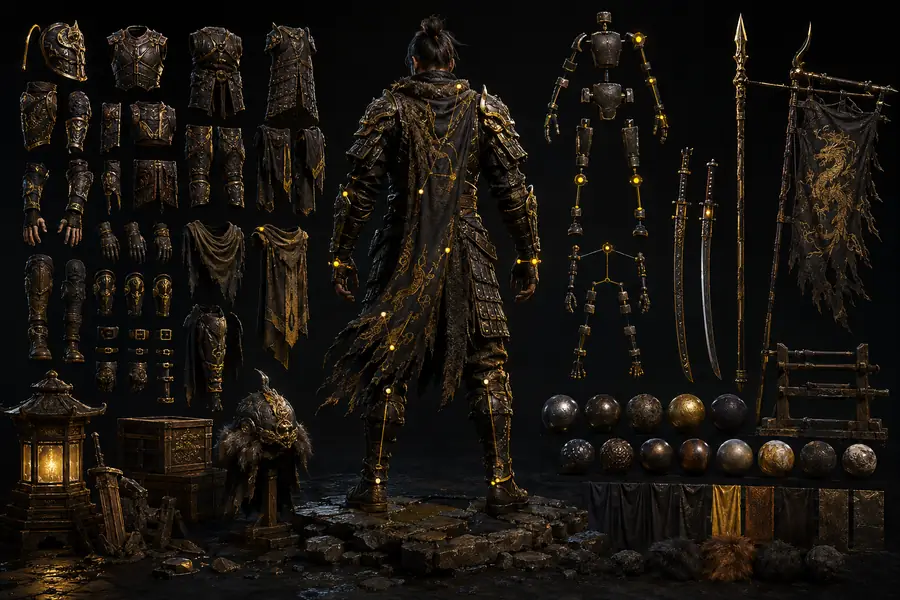
A successful export can look nearly identical while still changing hidden scene information. Compare the source and result for topology, materials, and motion.
The visible silhouette may remain intact even when unsupported controllers, custom shaders, pivots, or application-specific metadata are omitted.

Know the limits
Format conversion changes representation; it cannot repair every problem in the source scene. Review these caveats before relying on the exported asset.
Custom FBX materials and renderer-specific nodes may not have an equivalent GLB material.
WorkaroundBake the appearance into supported textures and verify roughness, metallic, normal, and alpha settings.
Complex rigs, constraints, morph setups, or controller logic may not transfer as expected.
WorkaroundTest each animation clip and simplify or bake motion before export when the result is inconsistent.
Missing, renamed, or inaccessible source textures cannot be recreated from the mesh alone.
WorkaroundPlace source images beside the asset, confirm paths, and inspect the exported package before publishing.
Conversion does not automatically remove hidden objects, duplicate meshes, excessive materials, or poor topology.
WorkaroundOpen the result in a viewer or editor and perform a deliberate optimization pass.
Planning calculator
Set the approximate number of FBX assets in your batch to estimate package size and the time a streamlined review workflow may save.
MB
minutes
minutes
Final checks
Open the exported file in a GLB-capable viewer and inspect the same details that matter to your audience: appearance, scale, motion, and loading behavior.