Game asset artist
A scanned or printed mesh needs to enter a scene with other production assets.
Use FBX as a handoff format, then inspect scale, normals, and pivot placement in the target engine.
glb to objMesh conversion
Use this stl to fbx guide to move a triangulated mesh into a format better suited to animation, scene assembly, and common content pipelines. The conversion preserves geometry while making the next verification steps clear.
The right destination depends on what you need after conversion. These common workflows show where an FBX output is useful and which neighboring format route may fit better.
A scanned or printed mesh needs to enter a scene with other production assets.
Use FBX as a handoff format, then inspect scale, normals, and pivot placement in the target engine.
glb to objA static STL surface needs cleanup before it can be rigged or animated.
Convert first, retopologize where needed, and use FBX as the scene exchange step.
fbx to glbA solid-model export must be moved into a DCC package for presentation work.
Keep expectations realistic: the mesh transfers, but CAD history and parametric features do not.
obj to glbThe starting asset exists as an image rather than a polygon mesh.
Generate or prepare a 3D asset first, then choose a scene-friendly export route.
image to glbSTL and FBX describe very different parts of a 3D workflow. This comparison highlights what transfers directly and what needs repair or rebuilding.
STL input
FBX output
STL input
Compact surface geometry for fabrication and mesh exchange
FBX output
Scene exchange for meshes, transforms, cameras, and animation data
STL input
Usually a single triangulated surface
FBX output
Polygon meshes with scene-level object structure
STL input
Often lacks reliable unit metadata
FBX output
Can carry scene scale information, but software interpretation varies
STL input
No standard material, texture, or shader data
FBX output
Can reference materials and textures when they are supplied
STL input
Not consistently supported across STL workflows
FBX output
May be retained only when the converter and destination support them
STL input
No bones, skinning, cameras, or keyframes
FBX output
Supports animation-related scene data, though none is created from STL alone
STL input
Triangles may be dense, uneven, or poorly organized
FBX output
Still reflects the source topology unless separately retopologized
STL input
Not included; STL is already a surface approximation
FBX output
Not restored by FBX conversion
A useful before-and-after check is visual, not just a filename change. Compare the source surface with the converted mesh before opening a larger production scene.
The output should keep the overall silhouette and major openings. Small gaps, flipped faces, unexpected scale, or a shifted origin are reasons to stop and inspect before continuing.
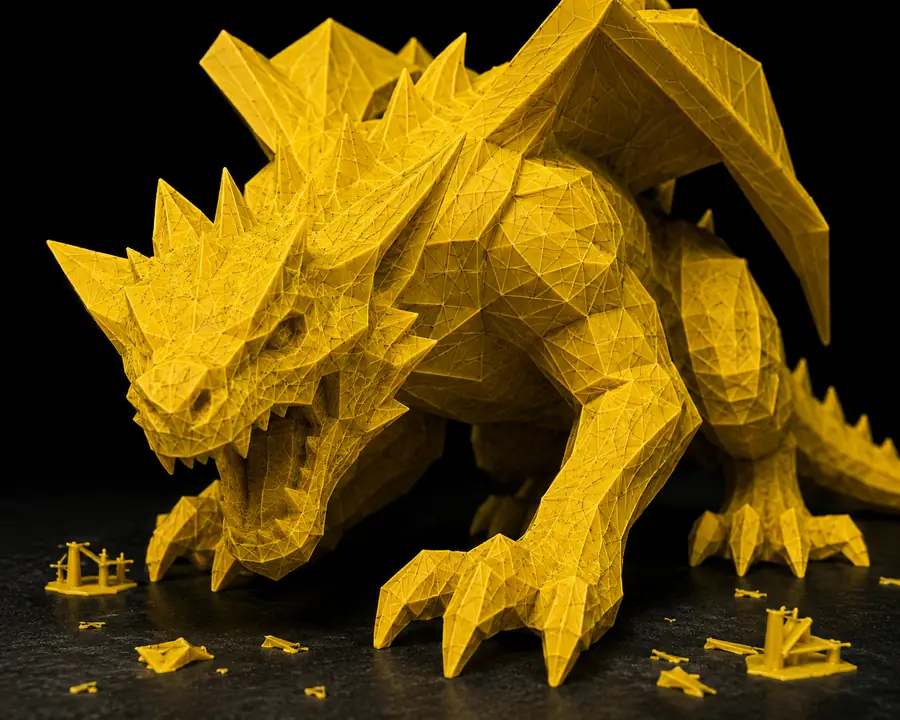

Keep these related conversion routes nearby when the source or destination changes. Each one addresses a different handoff rather than pretending all 3D formats behave alike.
An STL-to-FBX pass changes the container and scene compatibility, not the underlying quality of the source mesh. Plan for these limits before calling the asset production-ready.
An STL contains no bones, skin weights, keyframes, or rig controls, so the FBX output remains static.
WorkaroundRig and weight the mesh in a DCC or animation package after checking topology.
STL generally carries geometry only. Converting it cannot invent UVs, texture maps, shaders, or physically accurate surface appearance.
WorkaroundCreate UVs and assign materials after conversion, or use a source format that already contains appearance data.
Holes, non-manifold edges, dense scan noise, flipped normals, and long thin triangles may remain in the FBX mesh.
WorkaroundRun mesh inspection and repair, then retopologize or decimate for the intended use.
STL unit conventions and FBX import settings vary, so a correctly converted file can still appear too large or too small.
WorkaroundSet a known reference dimension and verify units, transforms, and pivot placement in the destination software.